How to Save a GIF from Pinterest on PC
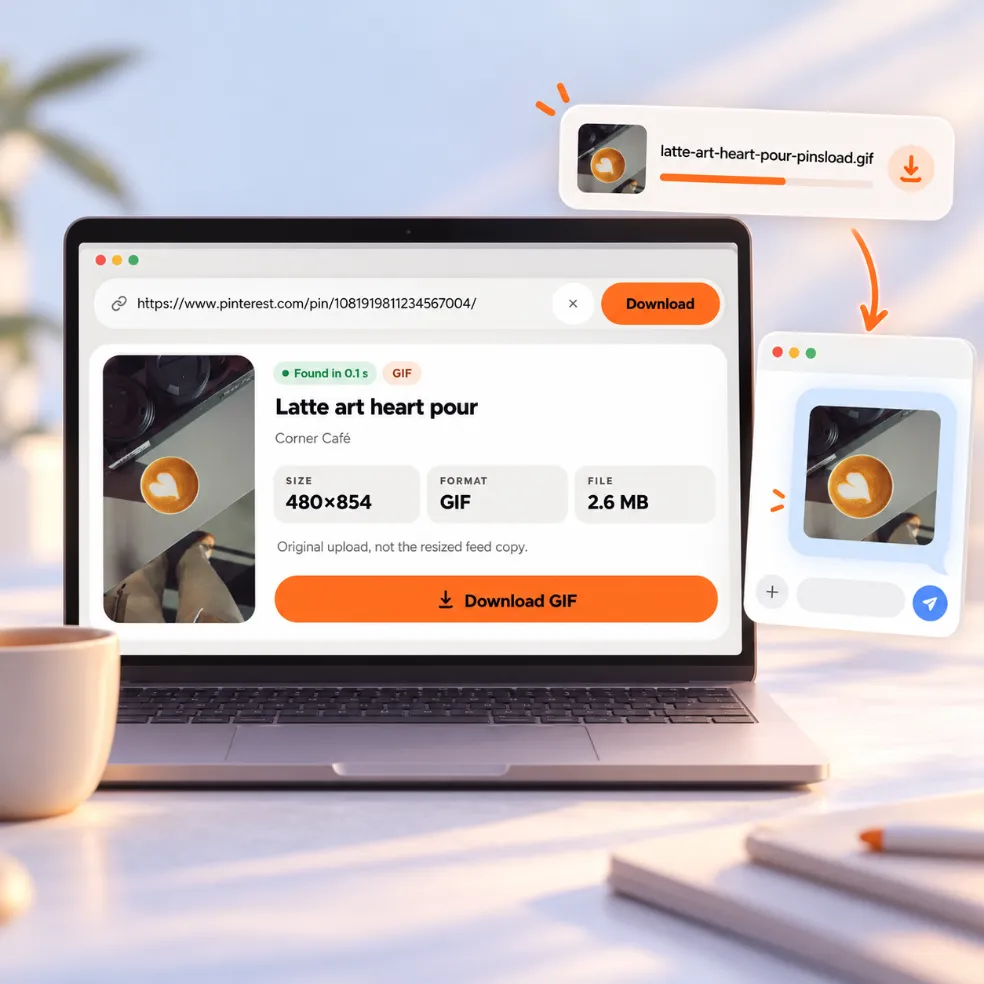
On Windows or Mac, paste the link and click Download GIF. The file goes to your Downloads folder, named after the Pin's title. Drop it into a chat or a web page and it keeps moving.
Save animated Pins as GIFs that keep moving — or turn a short video Pin into a GIF.
No link handy?
This Pinterest GIF downloader tells you what an animated Pin really is before you save it, then gives you the right file.
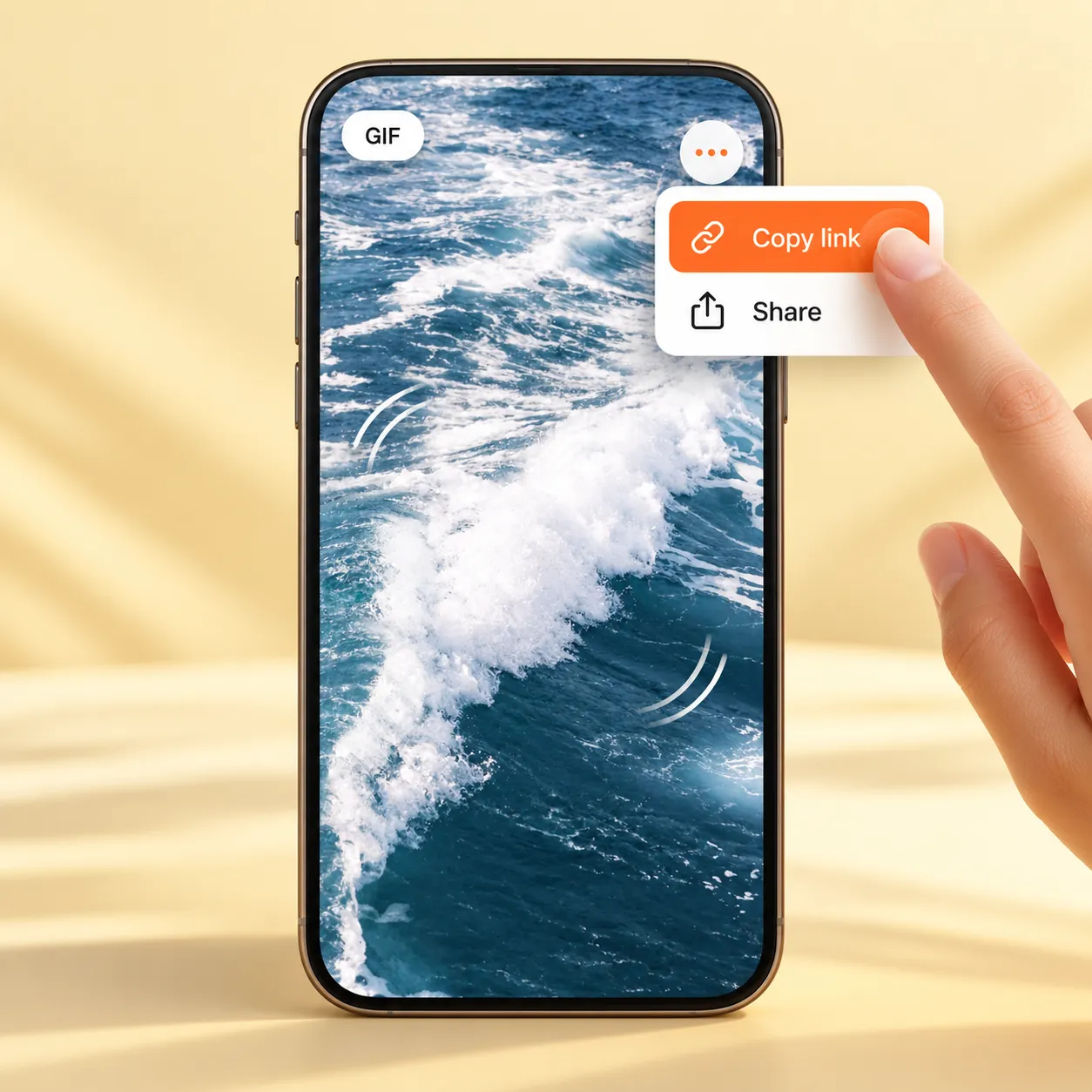
Open the animated Pin in the Pinterest app or on the website. Tap Share, then Copy link, or copy the address from your browser bar. Short pin.it links work too.
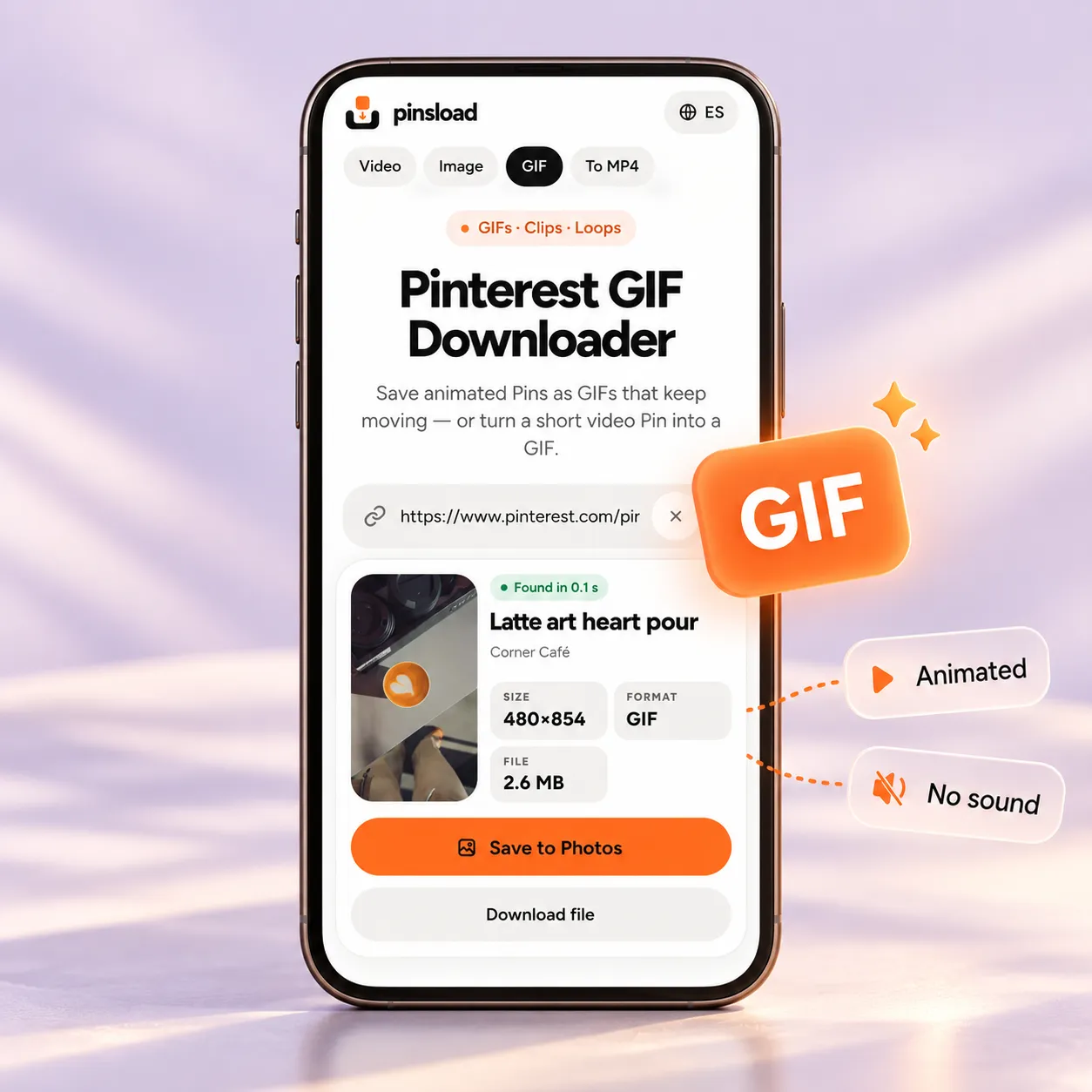
Paste the link into the box above. The result card labels the Pin as a GIF or a video and shows its size and length, so there are no surprises after you download.
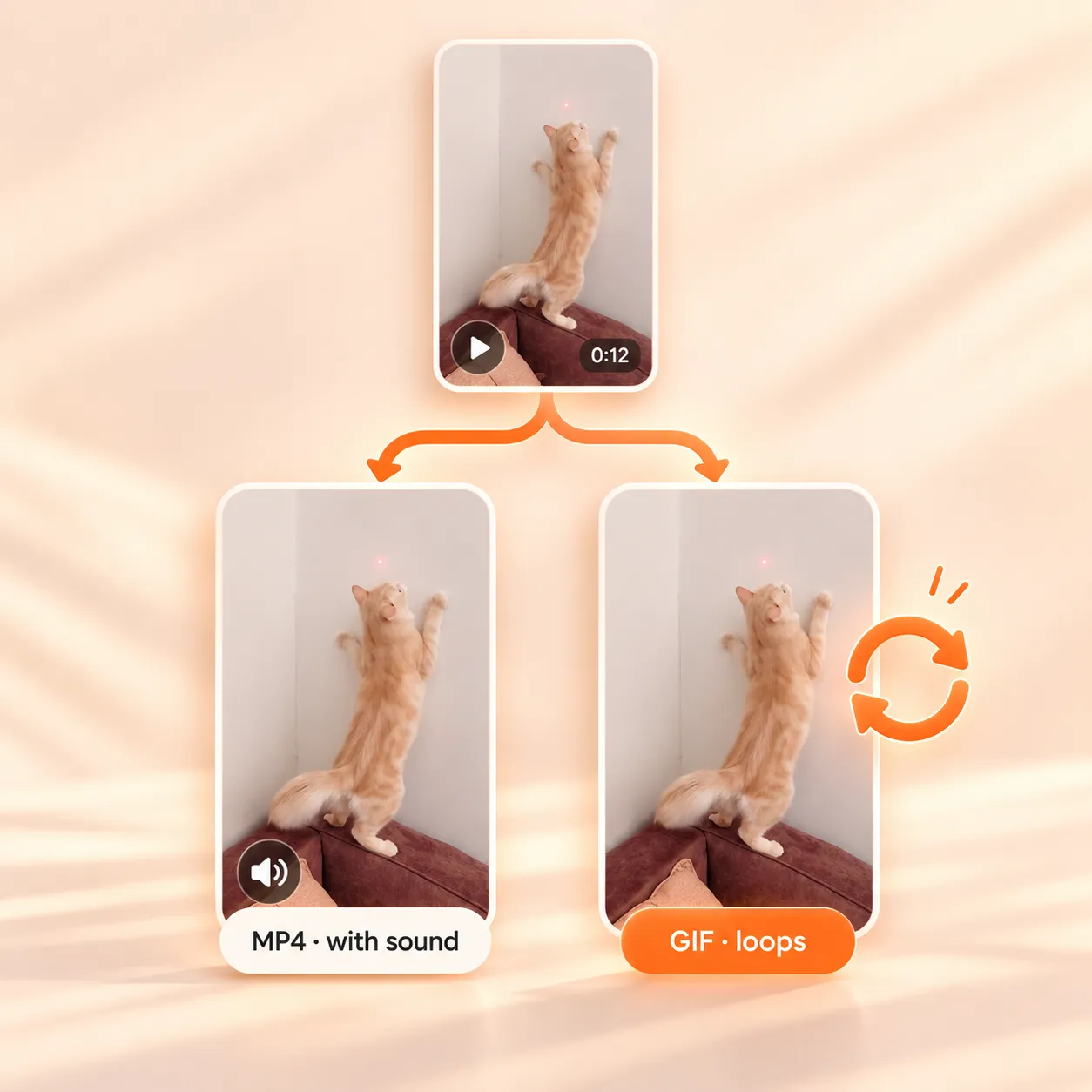
To download Pinterest GIFs that are real GIFs, tap Download GIF and the animation is saved as it is. For a video Pin, save the MP4 — the Pinterest to MP4 page explains that file — or tap Make a GIF to turn it into one.
On Windows or Mac, paste the link and click Download GIF. The file goes to your Downloads folder, named after the Pin's title. Drop it into a chat or a web page and it keeps moving.
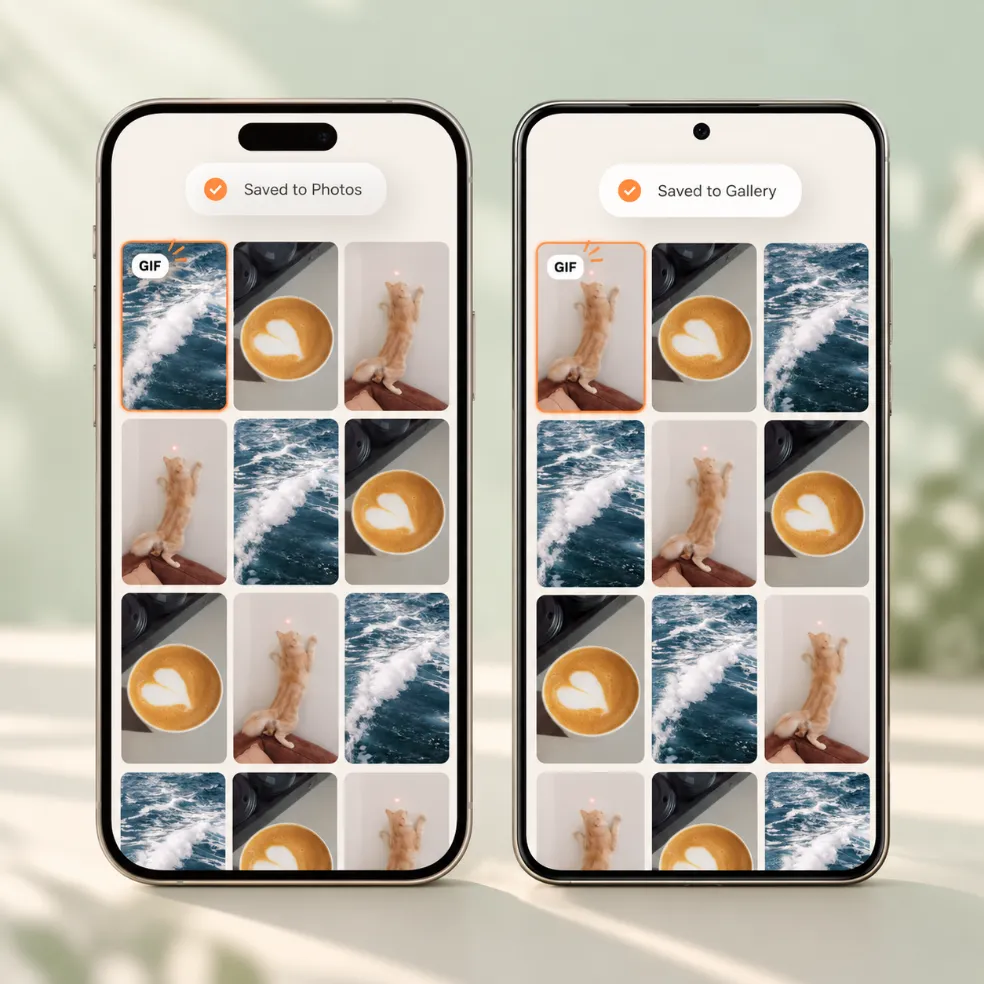
On a phone, tap Save to Photos and choose Save Image on iPhone, or your gallery app on Android.
Pinterest often stores short animated clips as video. They look like GIFs in your feed, but the file behind them is an MP4. That's why some GIF downloads end up as MP4s.
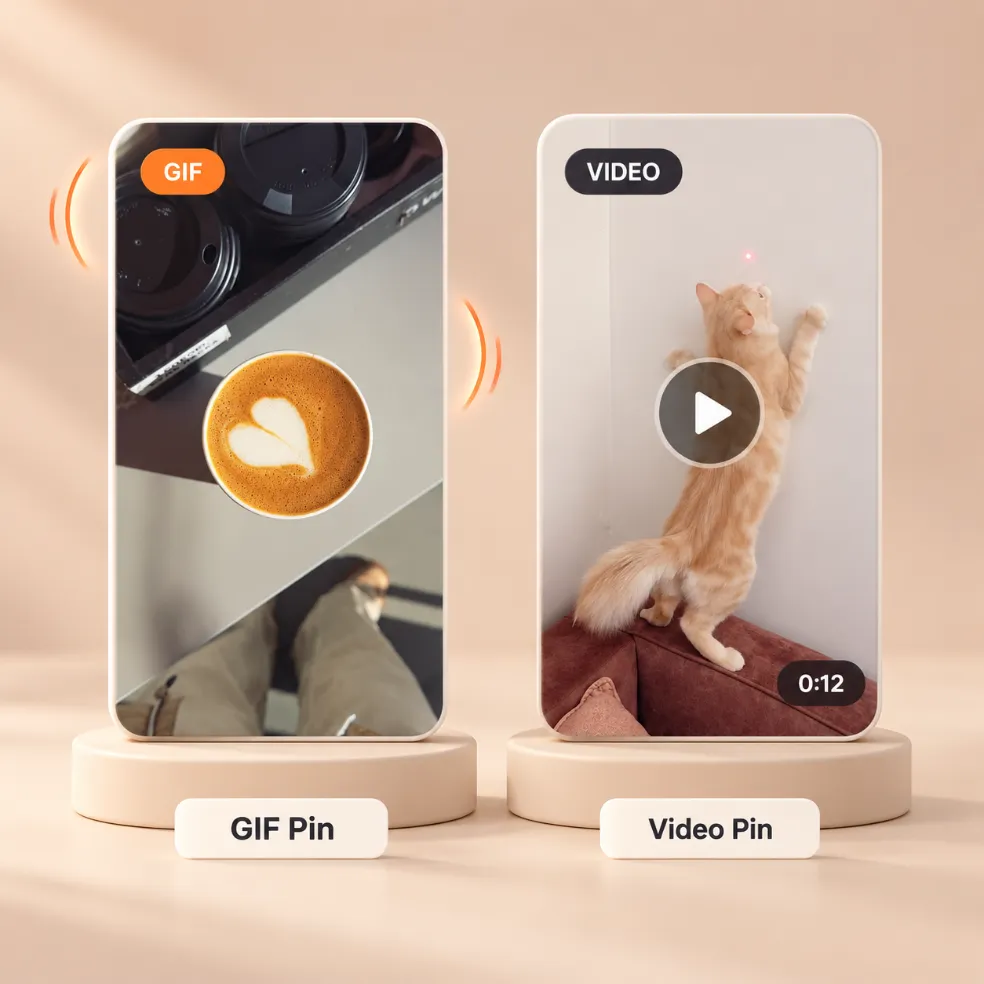
You don't have to guess. When you paste a link, Pinsload labels the result GIF or VIDEO. A real GIF shows no length; a video shows its length and has a play button.
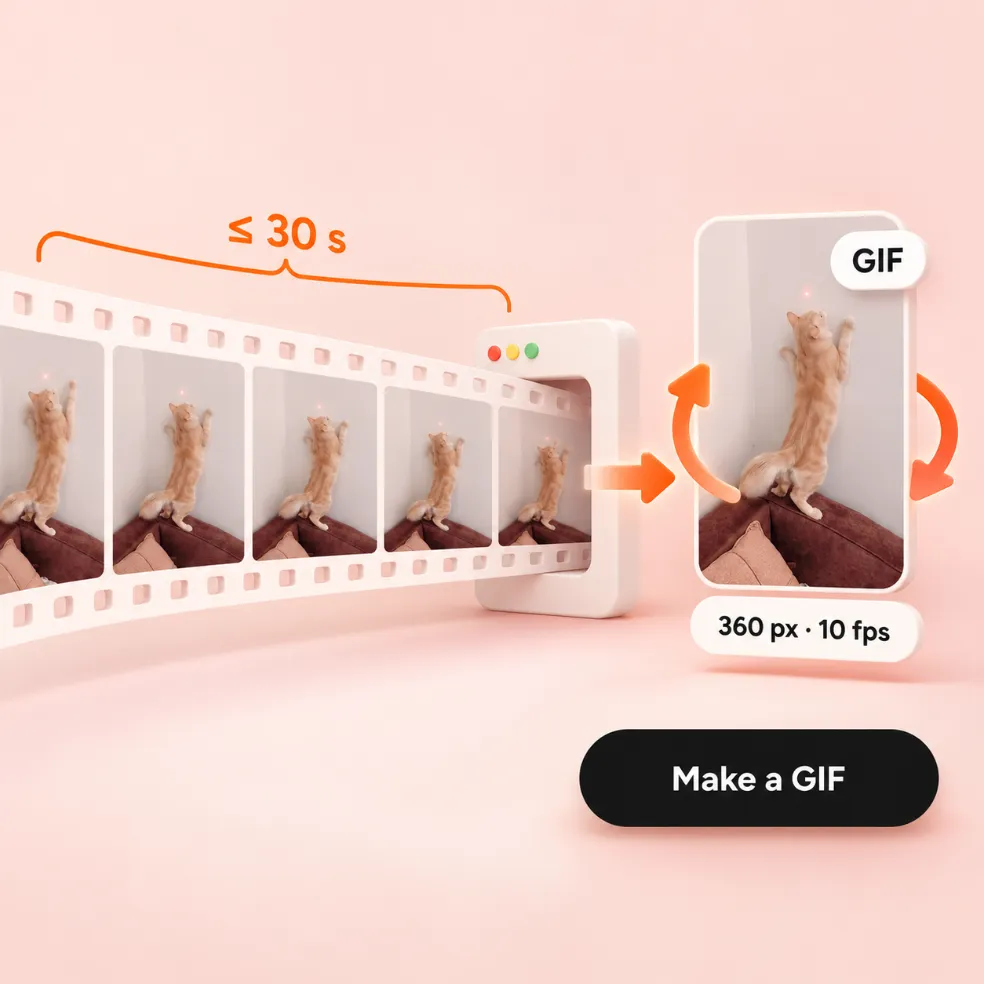
If the Pin is a video of 30 seconds or less, tap Make a GIF. Your browser turns it into a looping GIF, 360 pixels wide at 10 frames per second. The conversion happens in your browser, and we don't store your files.
A GIF made from a video is a conversion, not the original file, so it's worth knowing the trade-offs before you make one.
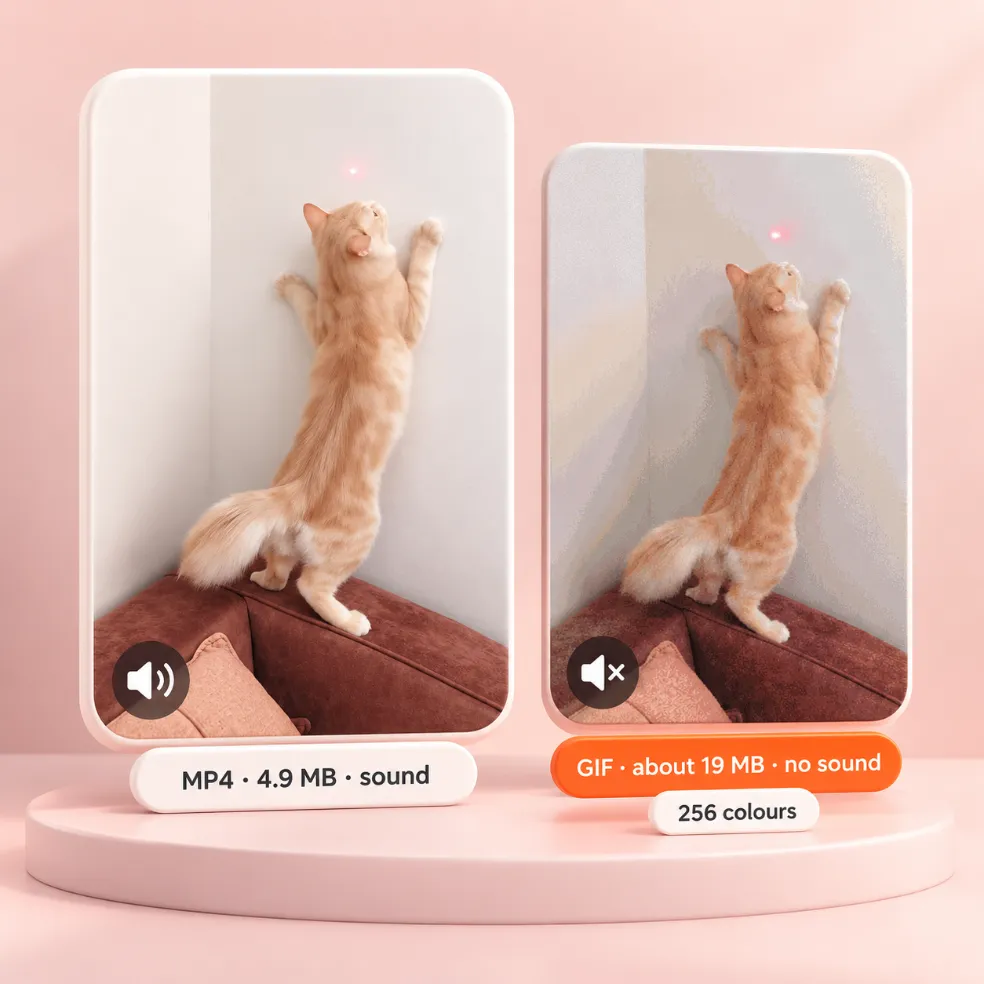
GIFs have no sound and only 256 colors per frame, so the result is smaller on screen and less smooth than the video. It's also much heavier: on our 20-second test Pin, the MP4 was 4.9 MB and the GIF Pinsload made from it about 19 MB. For sharing in chats a GIF is handy; for quality, keep the MP4.
Pinsload saves each Pin in the format it was uploaded in. An animated GIF stays an animated GIF, and a still image stays a JPG, PNG or WebP. For still images, the Pinterest Image Downloader has more on sizes and formats.
Yes. Paste the Pin link into Pinsload and tap Download GIF. If the Pin turns out to be a video, you can save the MP4 or make a GIF from it.
Copy the Pin link with Share › Copy link, paste it into the box at the top of this page and tap Download GIF. On a phone, use Save to Photos.
Pinterest's own Download image option doesn't appear on every Pin, and many animated Pins are stored as videos rather than GIFs. Pinsload saves the original file of any public Pin, and can turn a short video into a GIF.
It still has GIFs, but many short animations are stored as videos. Paste a link into Pinsload to see which one a Pin is.
Because the Pin is a video that only looks like a GIF. The MP4 is the original file. If you need a GIF, tap Make a GIF after pasting the link — it works for clips up to 30 seconds.
Paste the video Pin link, then tap Make a GIF. Pinsload converts it in your browser to a looping GIF, 360 pixels wide at 10 frames per second.
Up to 30 seconds. Longer clips would make very large GIFs, so for those, save the MP4 instead.
Open Pinsload in Chrome, Edge, Firefox or Safari, paste the Pin link and click Download GIF. Press Ctrl+J on Windows or Cmd+Shift+J on Mac in Chrome to find it.
Save Pinterest videos as MP4, with the real quality and size shown first.
Get the original image the creator uploaded, not the smaller copy Pinterest shows in the feed.
Turn a Pinterest video link into an MP4 file you can edit or share.
The Spanish version of Pinsload, for people who search in Spanish.